

Navigating The Operations Hub
This guide is for the new Valo Motion Operations Hub at hub.valomotion.com
The Operations Hub gives you a complete view of your business at a glance, so you can take action faster and run your Valo Motion attractions with confidence.
Step-by-Step Guide
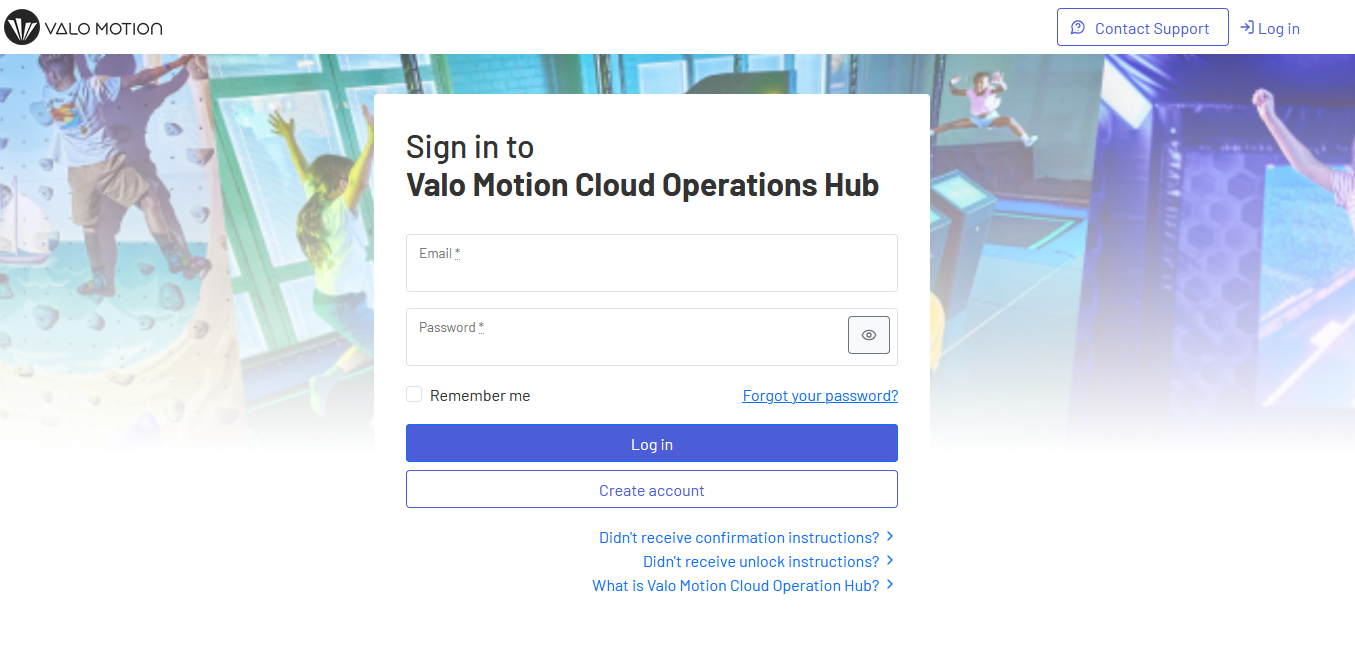
1. Access the Operations Hub
Open your browser and go to hub.valomotion.com
Enter your login credentials
Click Login
2. Understand the Home Page
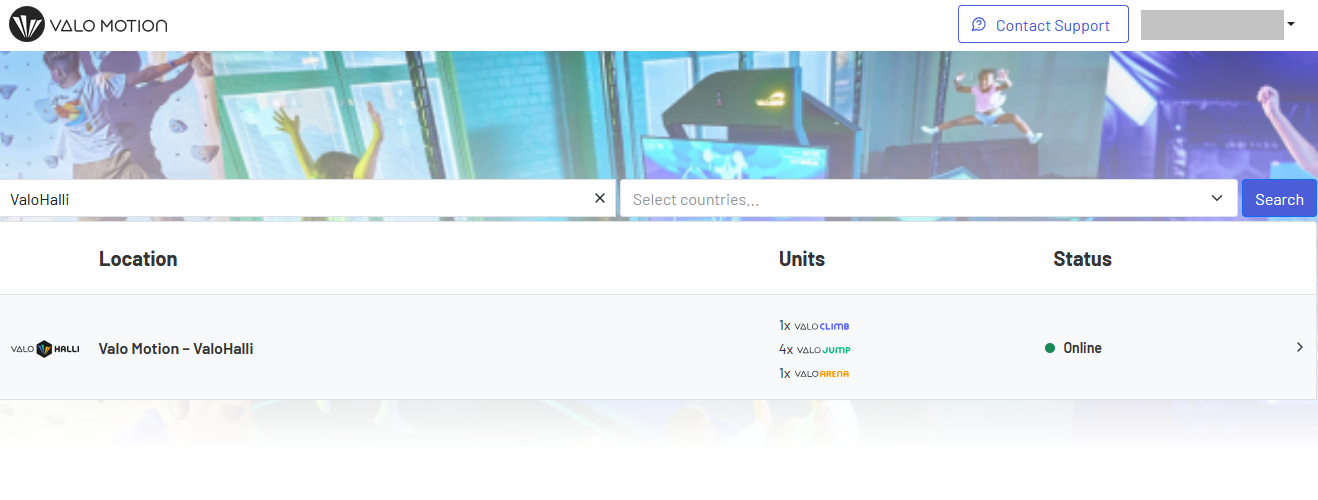
Once you're logged in, you'll see the Operations Hub homepage.
What you'll see:
All your locations that are listed
Every Valo Motion attraction at each site
A Status column that tells you if a unit is online, offline, or needs attention (for example, if a subscription is expiring or a device needs service)
To view details, click any location to jump in and see more information about each unit and what's happening right now.
3. Navigate the Six Main Tabs

Once you're inside a location, you'll see six main tabs at the top. Here's what each one does:
Tab 1: Status Page
Get a quick, complete snapshot of your venue's performance.
What you can do:
Instantly check the status of all Valo Motion units at your location
Use built-in dashboards and filters to see:
Guest behaviour: How guests are interacting with your attractions
Throughput: Total players using your units
Utilization: How often your units are active
Business performance: Income from units (if you use pay-to-play operation mode)
Top games: Which games your guests love most
Use advanced filters to drill into details, like weekend usage for a single unit or average players per attraction
Tab 2: Schedule
Set up automatic power-up and shutdown times for your units.
What you can do:
Create schedules for each day of the week
Set multiple ON/OFF intervals on the same day if you need breaks or split hours
Tab 3: Play Codes
Create and manage play codes for group events and special packages.
What you can do:
Generate batches of play codes
Print codes to hand out to guests
Control how guests unlock Valo Motion units for a set duration
Note: This tab is relevant if you use Play Codes operation mode.
Tab 4: Operation Settings
Keep all operational settings at your fingertips.
What you can do:
Adjust all unit settings for a location from one easy menu
Configure multiple ValoJumps (or other attractions) at once, saving you time
Select which languages show up on unit touchscreens, so guests always play in their preferred language
Choose which games are available on your units to offer a personalized experience for your venue's target audience
Set speaker volume for your devices
Configure touchscreen passwords for authorized staff access
Tab 5: Marketing
Stay visible and attract more guests.
What you can do:
Upload and schedule ads to play on your Valo Motion units
Preview how your logos appear on both devices and in-game
Update your venue information to appear on the interactive Valo Motion map at valomotion.app/map, making it easier for new guests to find you
Customize the email message that sends gameplay videos to your visitors after they play
Tab 6: Subscriptions
Handle all your subscriptions and billing with confidence.
What you can do:
View the subscription status of every unit at your location (active or expiring soon)
Update billing details used for invoices right inside the Hub
Download all your past invoices in one place
4. Access Account Settings & Support
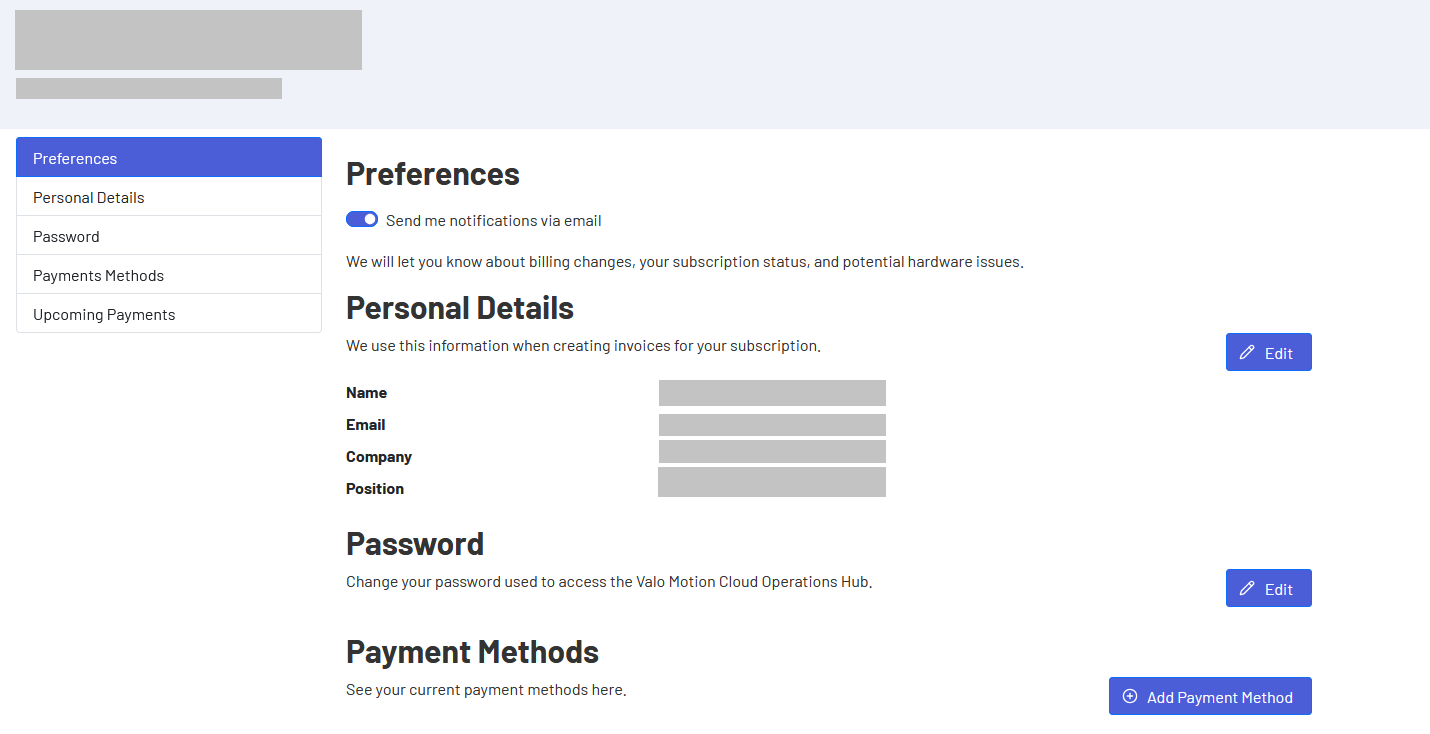
Where to find it: Click your name in the top right corner (on desktop), then select Your Settings
What you can manage:
Email notifications: Turn ON or OFF to stay informed about billing changes, subscription status, or hardware alerts (we recommend keeping these ON)
Personal details: Update your name, email, company, and position
Password: Change your Operations Hub login password
Payment methods: Add or change payment methods
Upcoming payments: View all scheduled payments
To contact support: Click the Contact Support button next to your name in the top right corner.
Tips for Operators
Bookmark the Hub: Save hub.valomotion.com in your browser for quick access. Everything you need to run your Valo Motion attractions is organized into these six tabs with your account settings easily accessible in the top right.
Start with the Status page: This is your daily command center. Check it each morning to see unit health, guest activity, and business performance at a glance.
Use filters strategically: The advanced filters in the Status page help you identify patterns, like which games are popular on weekends or which hours have the highest throughput, so you can optimize staffing and promotions.
Keep notifications enabled: Email alerts ensure you never miss important updates about subscriptions, billing, or hardware issues, even when you're not logged in.
If you need help, contact our support team at support@valomotion.com. We’re here to help you get the most out of your Operations Hub.